
How to add a photo to a PDF
Insert a photo or logo in a PDF and adjust its size and position before downloading it.
Read the guide
Add a visible label, status, or logo to selected pages to identify a copy and its intended use.
Your PDF stays on your device. It is not sent to any server.
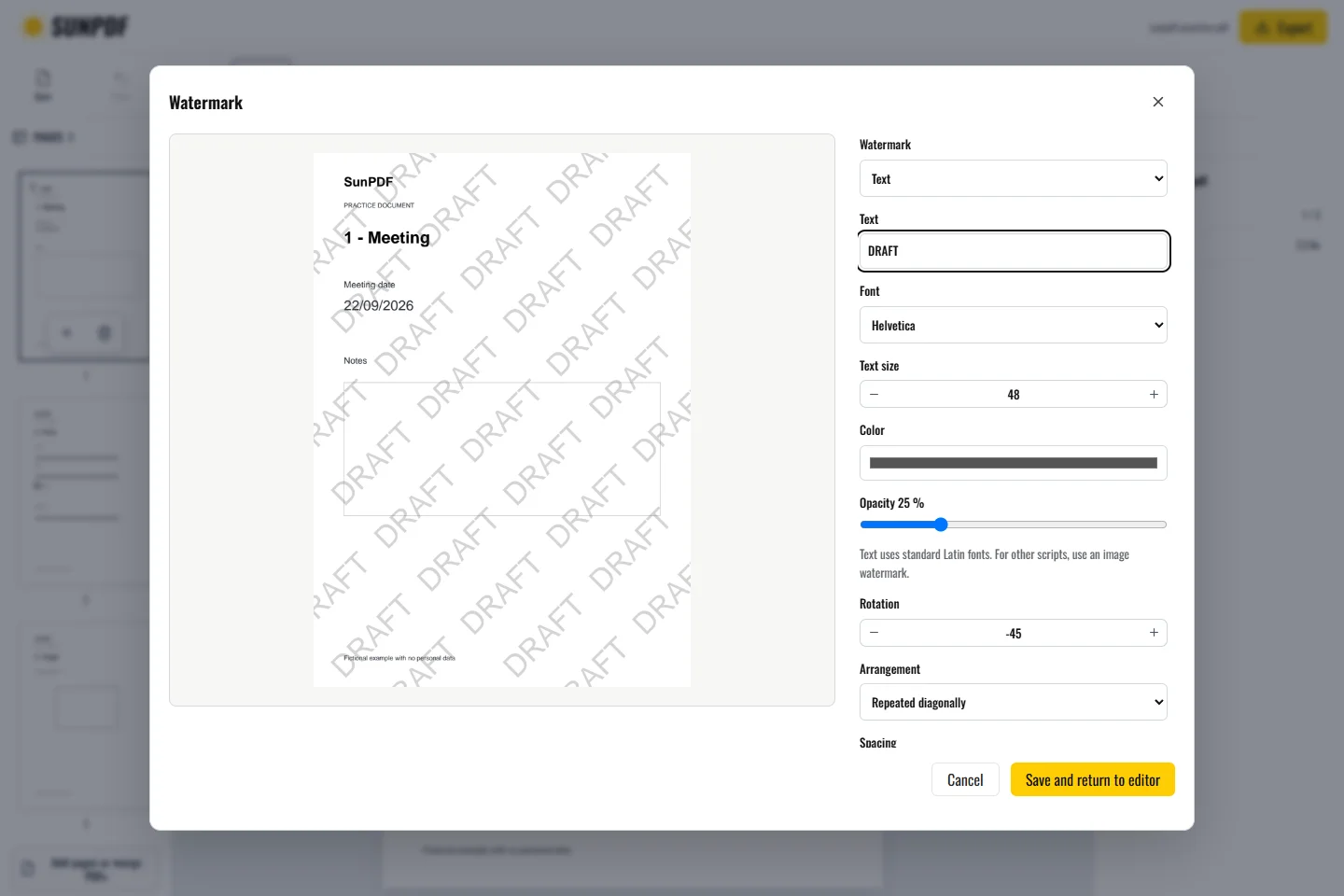
Fictional file created by SunPDF with no personal data.
Add DRAFT at 25% opacity and −45° to all three pages. Check that every heading remains readable.
Choose text or an image, then adjust position, opacity, rotation, and target pages with a preview before applying it. The watermark becomes part of the exported copy. Its occurrences can still be reviewed or changed during the session.
Document processing happens in your browser. SunPDF does not upload your PDF to a server for editing. Closing or refreshing the tab ends the current session.
A subtle Draft or Confidential label can cover every page, while an opaque logo needs a position that does not hide text.
Review targeted and untargeted pages, check contrast and readability, and make sure no information was unintentionally obscured.
Follow the steps and checks to make before saving your document.
Insert a photo or logo in a PDF and adjust its size and position before downloading it.
Read the guideCorrect, complete and organize a PDF for free, then download a new copy from your browser.
Read the guideEdit a sensitive PDF on your device and protect the copies you keep before and after the change.
Read the guide