
Choose the change before choosing the tool
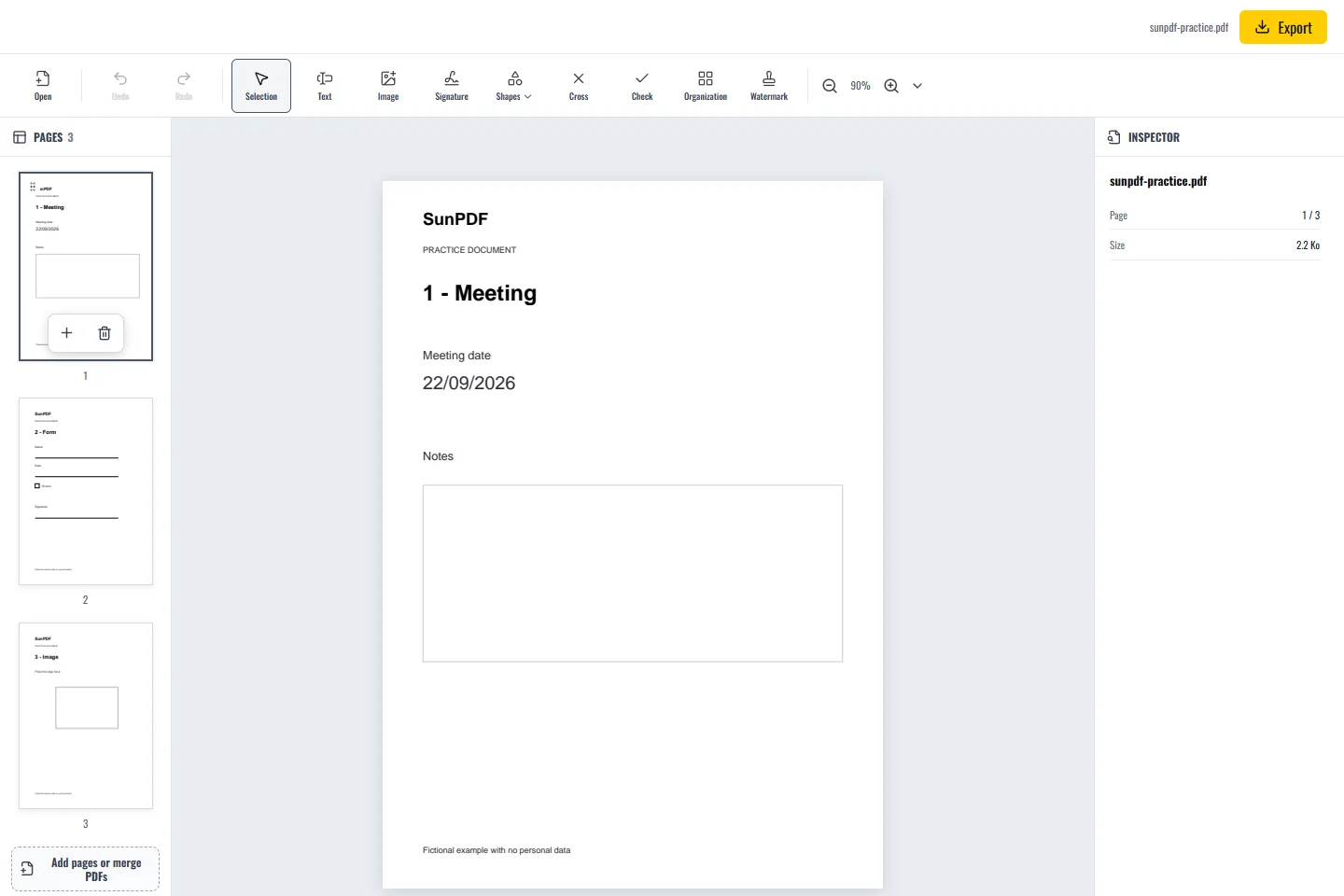
A PDF can contain editable text, images or a scanned page. For our sample, change the meeting date on page 1, add a note in the blank space and leave the other pages intact. Keep the original: exporting creates a separate copy, but closing or refreshing the tab loses the editing session.
Editing a PDF is not a single operation. The reliable approach is to identify the element that needs changing, choose the matching tool, and then inspect the exported copy instead of assuming every object behaves in the same way.
Steps in SunPDF
- Open the sample or choose a PDF of up to 50 MB. Go to the page using Pages.
- Use Select to select existing content. Double-click an editable text block to enter its text. A single click selects or moves it.
- For a new note, choose Add text and click an empty area. Type the note and adjust its size without covering the original.
- Click outside the text to finish the edit. Use Undo if the change is not what you intended.
- Choose Export, download the copy and reopen it in a PDF reader. Compare the changed page with the original.
Check more than the corrected word
- Check the date, accents and line endings at a readable zoom, then inspect the entire page for overlap.
- Confirm that the page count and the untouched pages are unchanged.
Limits to understand
A scanned page is an image: SunPDF does not turn it into editable text with OCR. Adding a text box does not remove anything underneath. If the file contains a digital signature, saving changes may invalidate it. Work on an unsigned source when possible.