
Insert a logo without covering the document
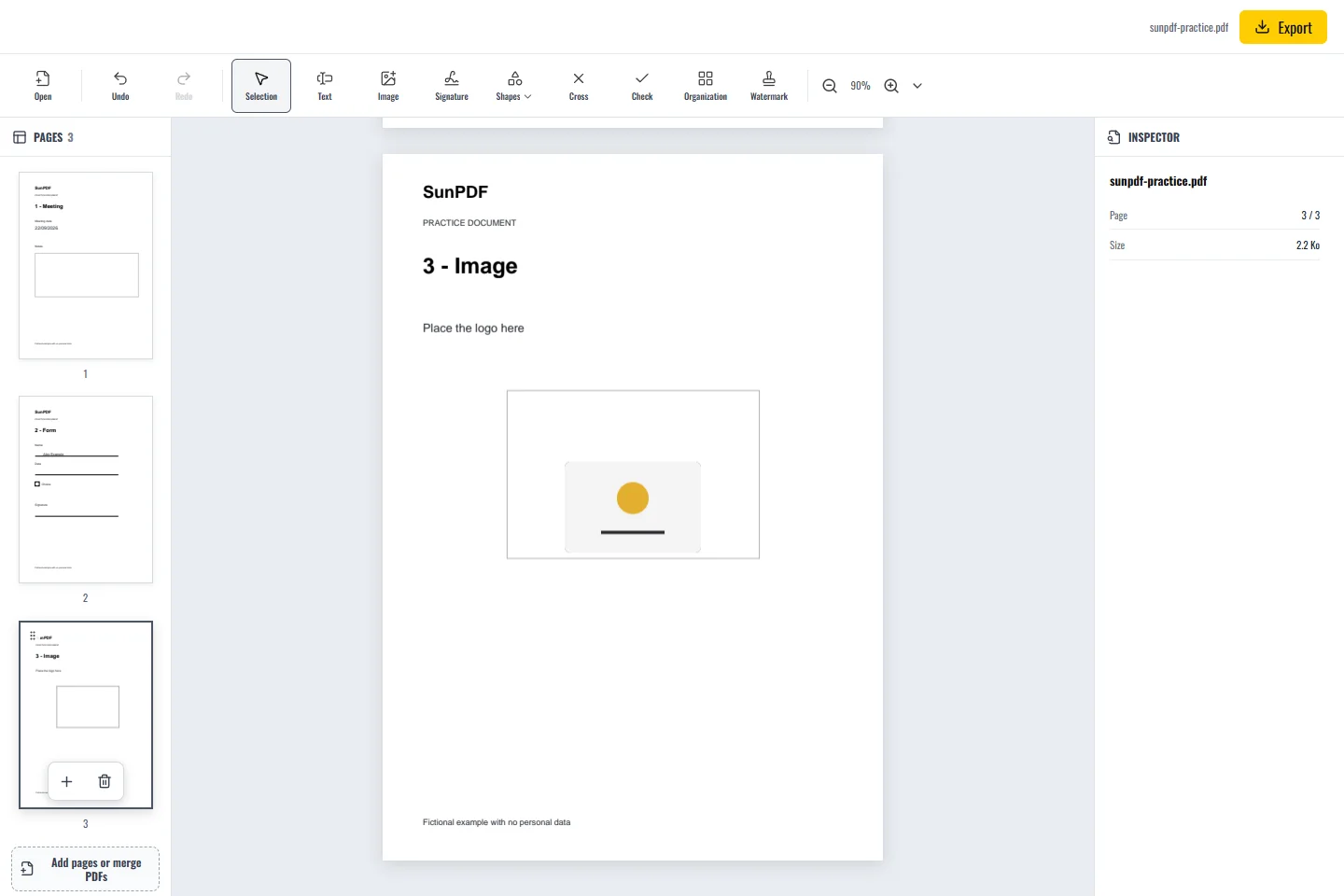
Use the sample's empty image frame on page 3 and the supplied practice logo. A PNG can preserve transparency. A JPEG normally has a filled background. Choose the source image before inserting it so you can judge how that background will look over the page.
The exported quality depends on both the source file and its position on the page. A sharp image with the right proportions remains readable, while a small image enlarged over nearby text quickly becomes difficult to use.
Steps in SunPDF
- Open page 3. Choose Image / Add image and select the PNG or JPEG on your device.
- Place the imported image on the page and use Select to expose its resize handles.
- Resize it with a corner handle, then move it into the frame. Compare its proportions with the original image.
- Inspect the neighbouring text at a readable zoom. Move or reduce the image if it overlaps useful content.
- Export the PDF, reopen it and check the image at the expected viewing or printing size.
Resolution and placement
- A tiny source image does not gain detail when enlarged. Start with a sharper image if the result looks blurred.
- Check transparent edges and backgrounds against the actual PDF page, not only the image preview.
Limits to understand
Adding an image creates new visible content. It does not erase content underneath. Use an image you have permission to include. If an existing PDF image cannot be selected or moved, it may be part of a more complex object. Inserting a replacement over it is not secure removal.