
How to add a photo to a PDF
Insert a photo or logo in a PDF and adjust its size and position before downloading it.
Read the guide
Add a PNG or JPEG image to your PDF, then move, resize, or rotate it directly on the page.
Use this tool for free as often as you need. The document is processed on your device so its contents remain under your control.
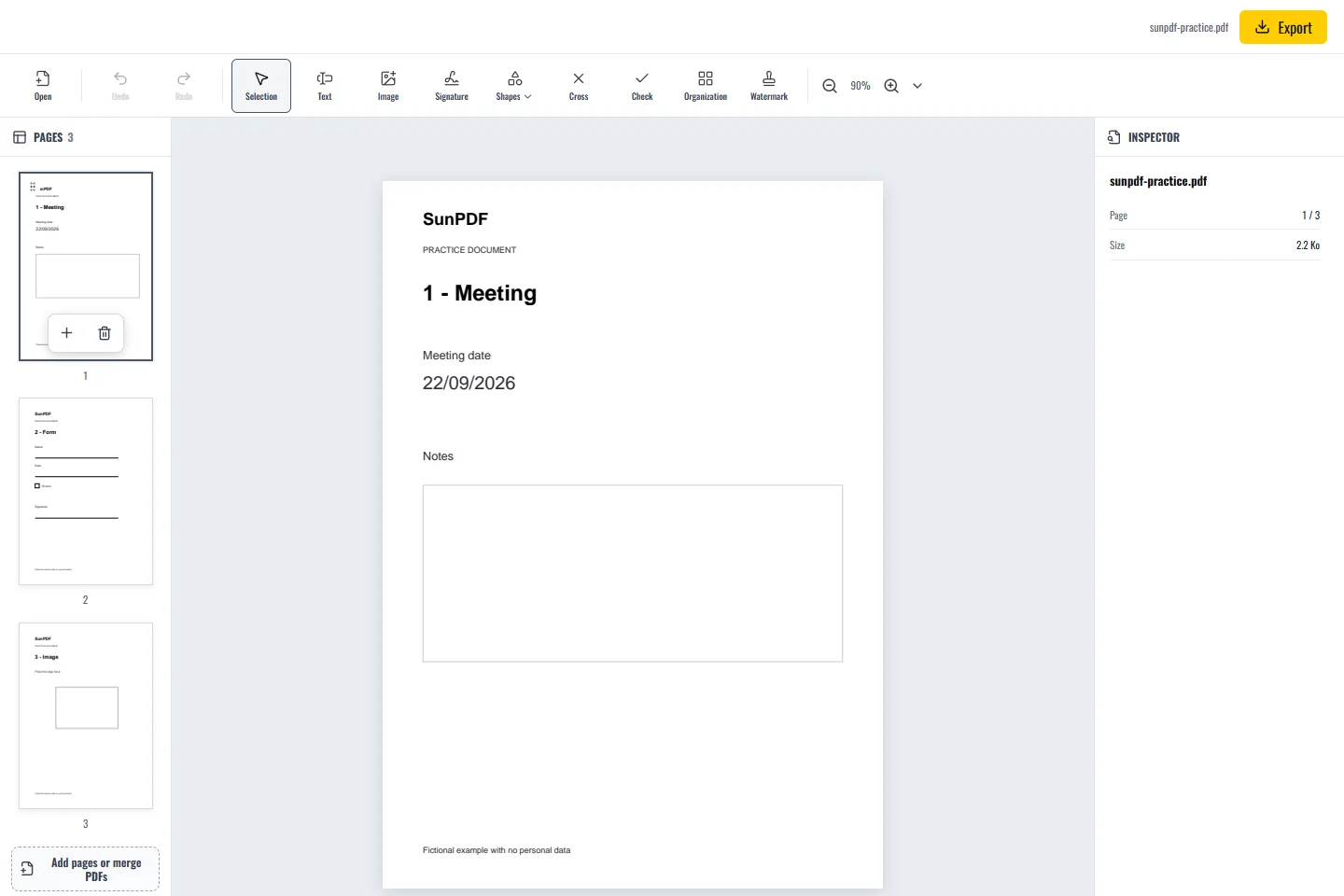
Before
After
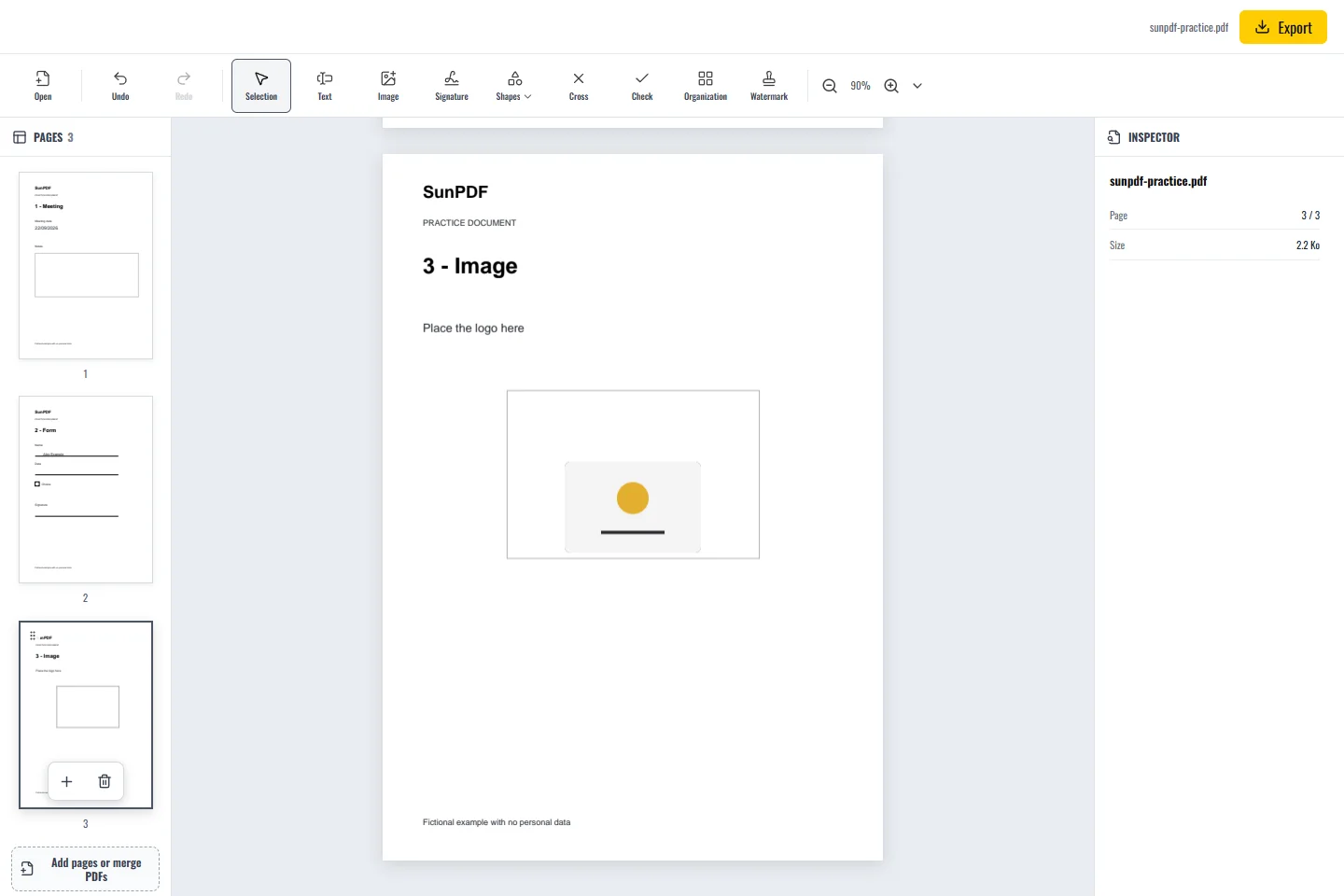
Fictional documents: three practice pages and an appendix, with no personal data.
Page 3: import the practice logo, resize it from a corner and place it in the frame. Check its proportions in the export.
The image appears on the active page. Move, resize, rotate or duplicate it, then inspect the page before saving the new PDF.
Document processing happens in your browser. SunPDF does not upload your PDF to a server for editing. Closing or refreshing the tab ends the current session.
Add a logo, photograph, or supporting image when it needs to become visible page content without covering useful information.
Reopen the PDF, inspect sharpness and proportions at the intended size, and check the edges, background, and nearby text.
Follow the steps and checks to make before saving your document.
Insert a photo or logo in a PDF and adjust its size and position before downloading it.
Read the guideCorrect, complete and organize a PDF for free, then download a new copy from your browser.
Read the guideEdit a sensitive PDF on your device and protect the copies you keep before and after the change.
Read the guide