
Place a visual signature on the signature line
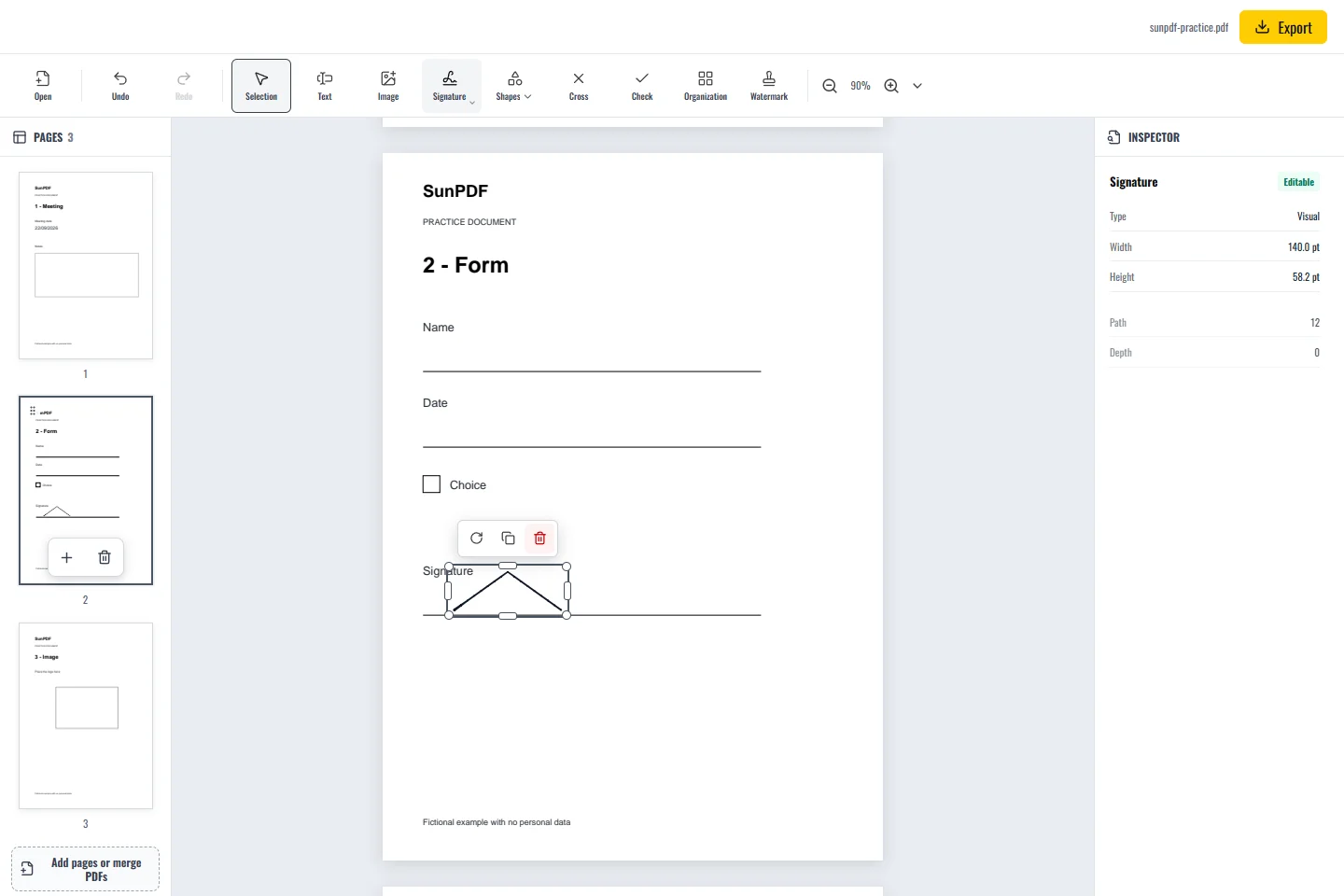
For this exercise, use a fictional mark on page 2 of the sample. A drawn or imported signature is a visual appearance. A certificate-based digital signature is a different operation. Ask the recipient which kind they require before signing a real document.
The important question is not only how to place a signature, but which type the recipient expects. A drawn appearance suits some situations, whereas a regulated process may require a certificate and additional checks.
Steps in SunPDF
- Open the Signature tool. Choose a visual signature for this exercise.
- Draw a fictional mark with a mouse, finger or stylus, or import a PNG/JPEG image of a mark you are authorized to use.
- Confirm the appearance, then click near the signature line to place it.
- Use the selection handles to adjust size and position. Keep the mark clear of the date and the surrounding terms.
- Export and reopen the PDF. Confirm the mark is on the intended page and remains readable at normal zoom.
Appearance does not establish certificate trust
- Complete text corrections before applying a certificate-based signature. Later edits may invalidate it.
- If using a certificate, inspect the signature status in a reader that supports digital-signature validation.
Limits to understand
SunPDF also supports personal P12/PFX certificates and locally created self-signed certificates. A self-signed certificate is not automatically trusted by a recipient. A visible mark alone neither verifies the signer's identity nor guarantees that the recipient will accept the document.