
Fill existing fields or create reusable fields
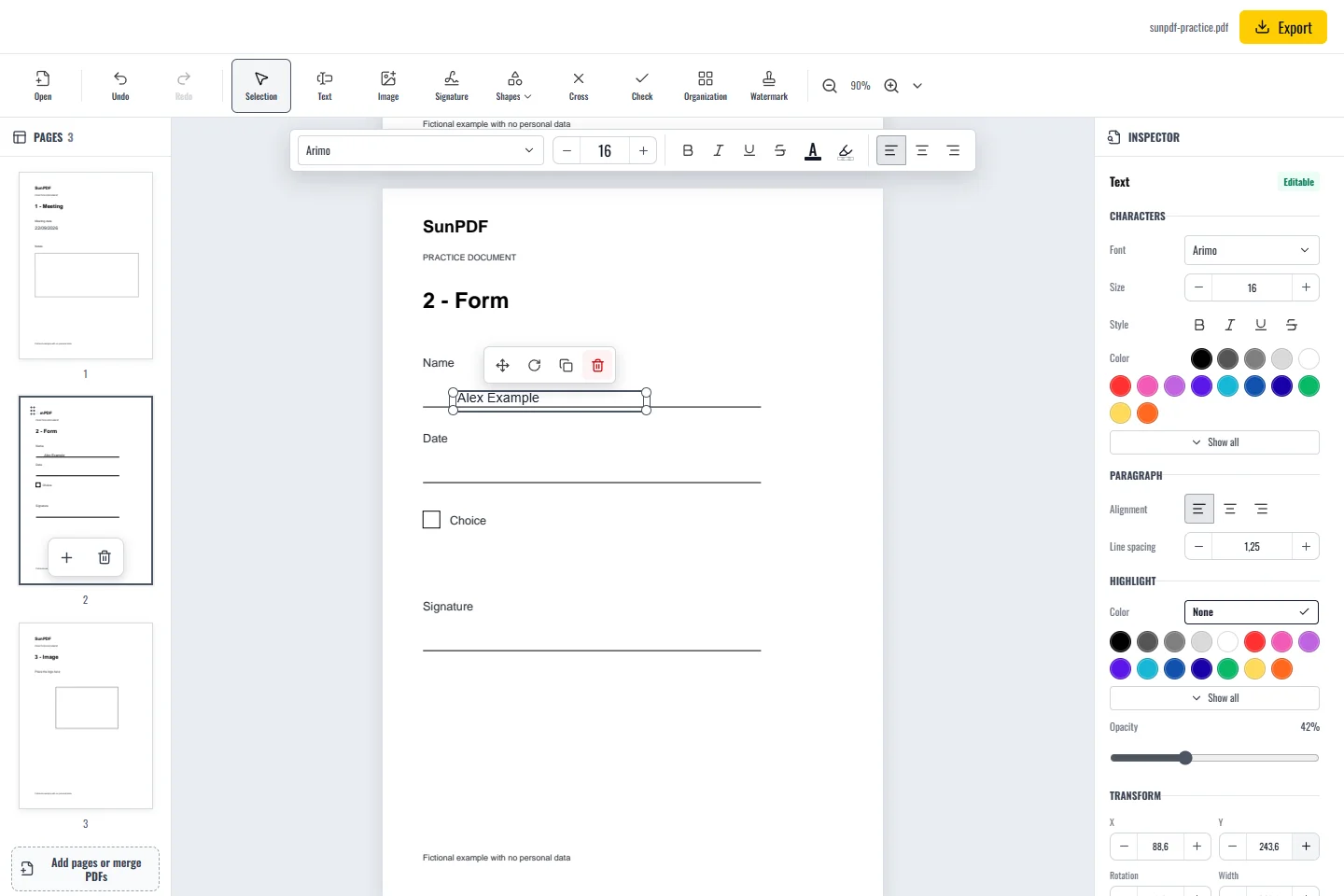
SunPDF fills interactive fields already present in a PDF. If the file only has drawn lines, like page 2 of the sample, the Text field and Checkbox tools can create reusable AcroForm fields.
A form may look interactive even when its lines and boxes are only drawn on the page. SunPDF can complete that page visually, but it does not turn those areas into fields that calculate or validate an answer.
Steps in SunPDF
- Open page 2. Choose Text field and drag a field above the name line.
- In the inspector, give it a unique name, an accessible label and mark it required when appropriate.
- Create another text field for the date, then place a Checkbox over the drawn box.
- Return to Select and enter fictional practice values in the new fields.
- Export and reopen the PDF to confirm that values remain editable and aligned.
Before sending a completed form
- Check unique names, accessible labels, date format and required fields.
- Reopen the exported copy in the reader expected by the recipient before sending it.
Limits to understand
SunPDF creates text fields and checkboxes and fills common AcroForm text, checkbox, radio and choice fields. It does not run embedded scripts, calculations or submissions, edit XFA forms, or recognize labels in scans with OCR.