How to edit a confidential PDF safely
Edit a sensitive PDF on your device and protect the copies you keep before and after the change.
Read the guide
Reduce an image-heavy PDF when an upload or email limit is a problem while keeping native text and vector graphics intact.
Your PDF stays on your device. It is not sent to any server.
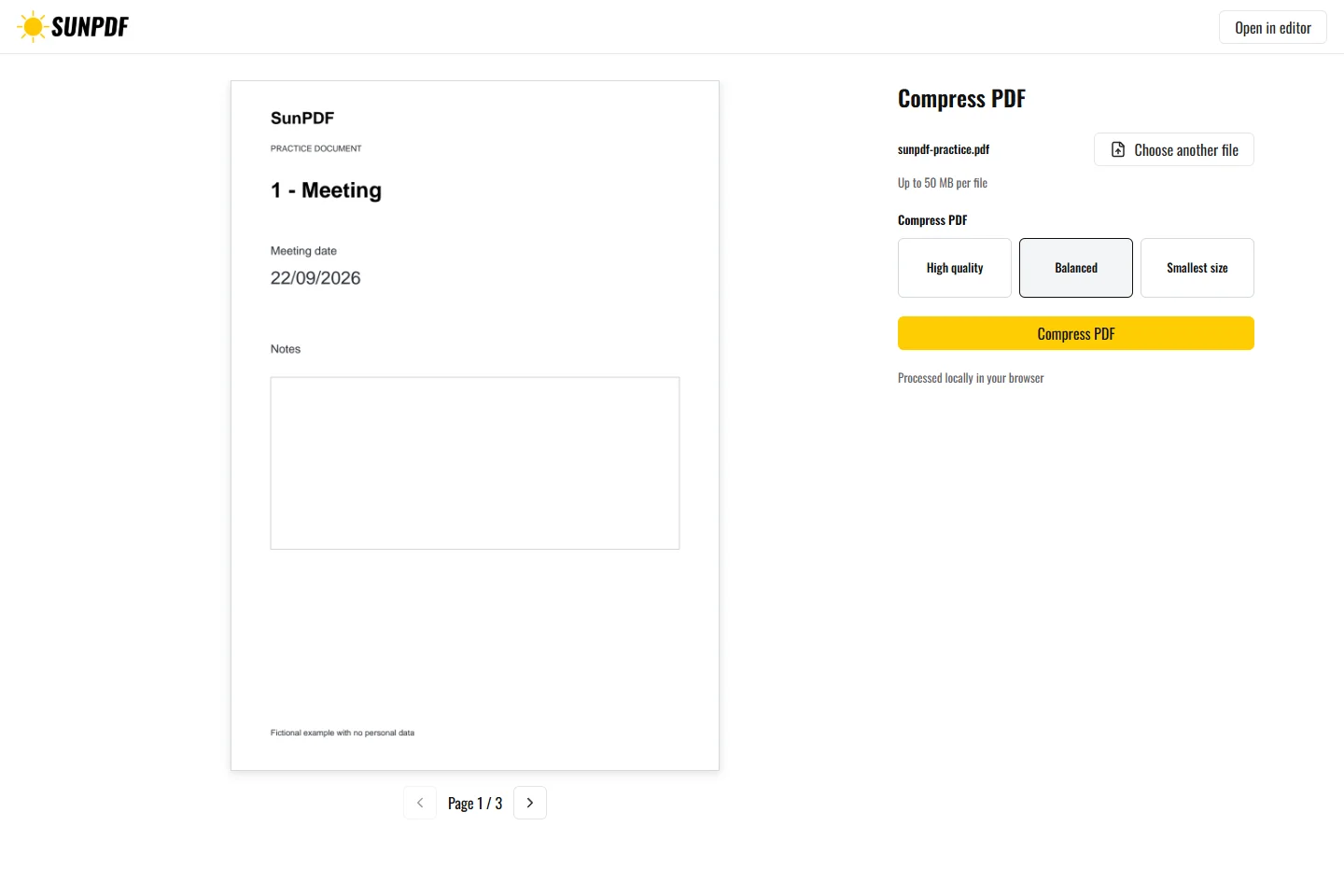
Fictional file created by SunPDF with no personal data.
Compress the document with the Balanced profile. Compare sizes, then check that all three headings and body text remain readable.
SunPDF first identifies images that can benefit from recompression, applies the selected profile, and also tests structural QPDF optimization without rasterizing pages. The smallest valid candidate is retained. The workspace compares before and after sizes and explains when no worthwhile reduction can be kept.
Document processing happens in your browser. SunPDF does not upload your PDF to a server for editing. Closing or refreshing the tab ends the current session.
High quality favors reading and printing, Balanced suits everyday sharing, and Smallest size helps when the file limit matters most.
Review the reported reduction, zoom into images and transparency, search for sample text, and reopen the PDF in another reader before sending it.
Follow the steps and checks to make before saving your document.
Edit a sensitive PDF on your device and protect the copies you keep before and after the change.
Read the guideInsert a photo or logo in a PDF and adjust its size and position before downloading it.
Read the guideCorrect, complete and organize a PDF for free, then download a new copy from your browser.
Read the guide