
Replace a date without adding a second text layer
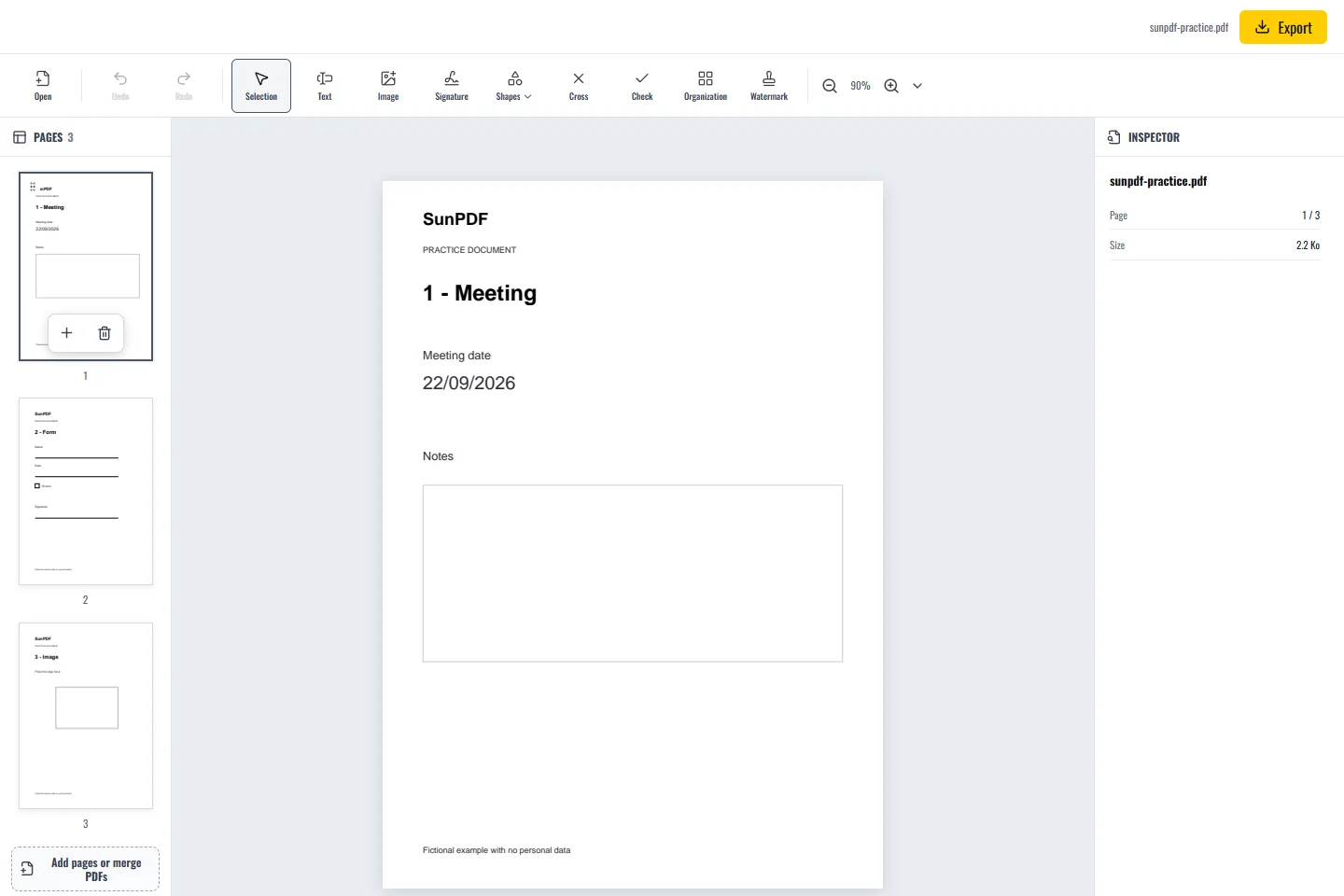
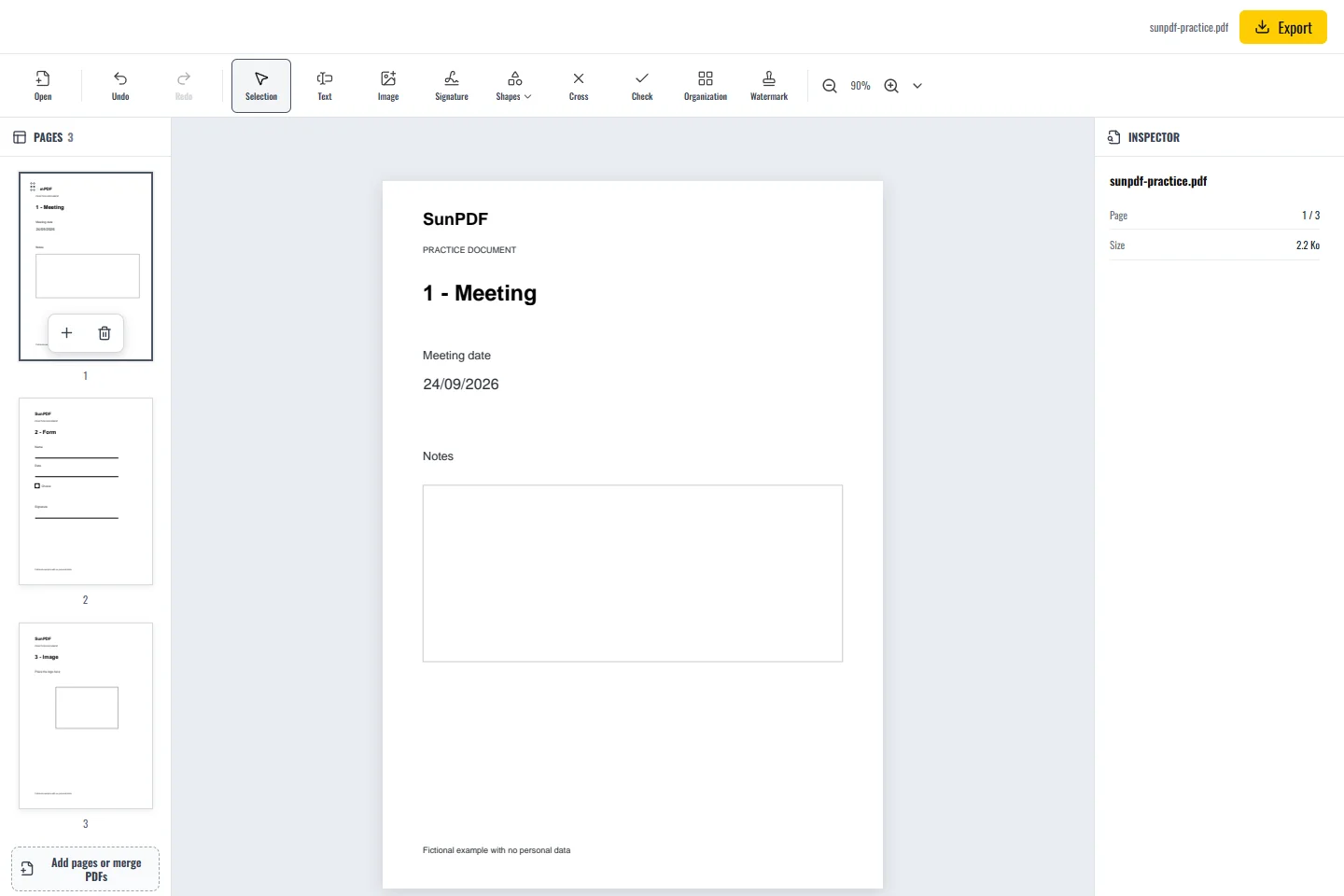
The sample contains the date 22/09/2026 as real PDF text. Replace it with 24/09/2026. This exercise edits an existing object, whereas Add text creates a new object. The difference matters when someone later selects or searches the exported text.
Changing existing text is different from adding a new text box. The first operation alters an object already stored in the PDF, while the second places visible content over the page without replacing what was there before.
Steps in SunPDF
- Open page 1 and choose Select. Click the date to reveal its selection frame.
- Double-click the text to start editing. Select only the characters to replace and type 24/09/2026.
- If SunPDF reports a font substitution, compare the letter shapes and spacing. An embedded PDF font may not contain every new character.
- Click outside the text to apply it. If the line no longer fits, undo and try a shorter correction or adjust the text size.
- Export the PDF and reopen it. Search for the new date and inspect the line at both normal and enlarged zoom.
Before
After
When the text cannot be selected
- A page may be a scan, outlined lettering or a protected object. Zooming in does not make these editable text.
- Check nearby amounts and line breaks: a longer replacement can run into another object.
Limits to understand
Do not cover sensitive words with a white rectangle and assume they have been deleted. That only changes the appearance. SunPDF does not provide a verified redaction workflow. Use a tool designed for secure redaction when the underlying information must be removed.